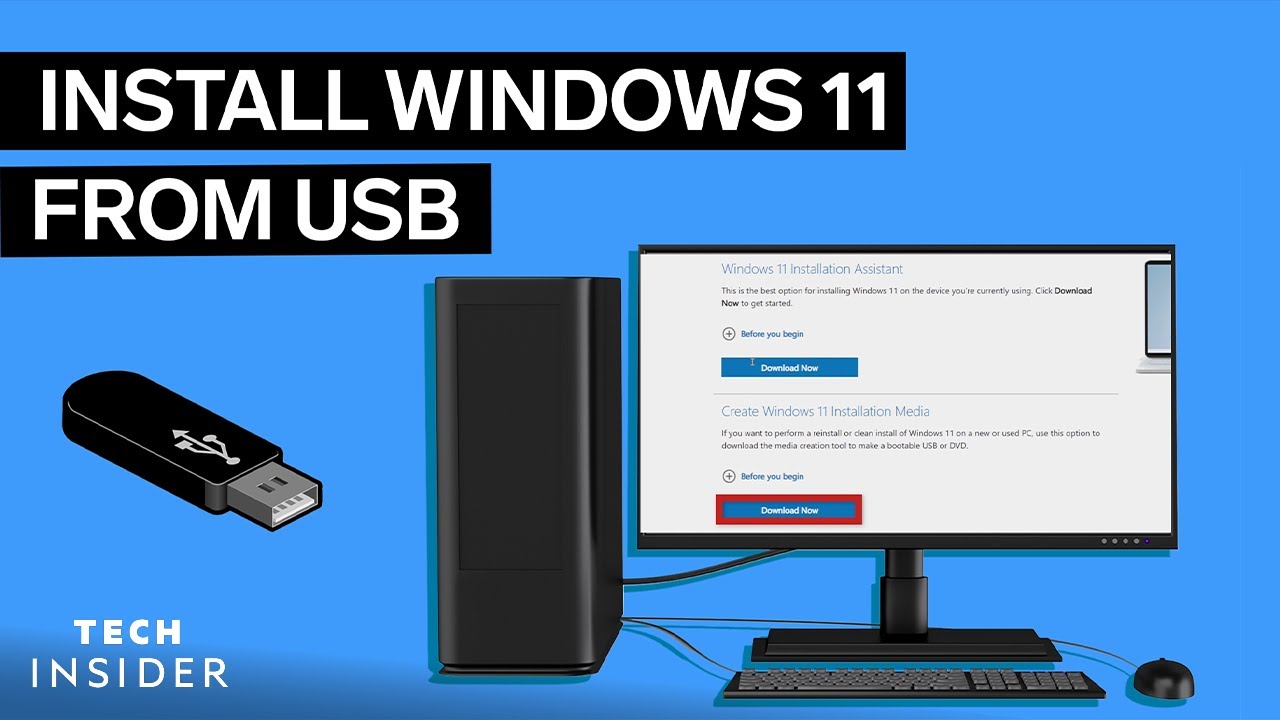
Choosing the right approach to download windows 11 to usb easily starts with clear context, practical filters, and realistic expectations.
Introduction to Downloading Windows 11 to USB Downloading Windows 11 to a
USB drive is a convenient way to install the operating system on any computer, whether you're upgrading from an older version or setting up a new device. This process eliminates the need for CDs or DVDs, making it more accessible and environmentally friendly. However, navigating the download and installation process can be daunting, especially for those who are less tech-savvy.
Understanding the Requirements
Before you start downloading Windows 11 to a USB drive, it's essential to understand the system requirements. Windows 11 has specific hardware requirements that your computer must meet to run the operating system smoothly. These include a 64-bit CPU, 4GB of RAM, 64GB of storage, and a Trusted Platform Module (TPM) 2.0. Ensuring your computer meets these requirements is crucial for a successful installation.
Checking System Compatibility To check if your computer is compatible
with Windows 11, you can use the PC Health
Check app provided by Microsoft. This app scans your computer's hardware and software to determine if it meets the minimum system requirements for Windows 11. It's a straightforward process that helps you avoid potential compatibility issues down the line.
Choosing the Right USB Drive
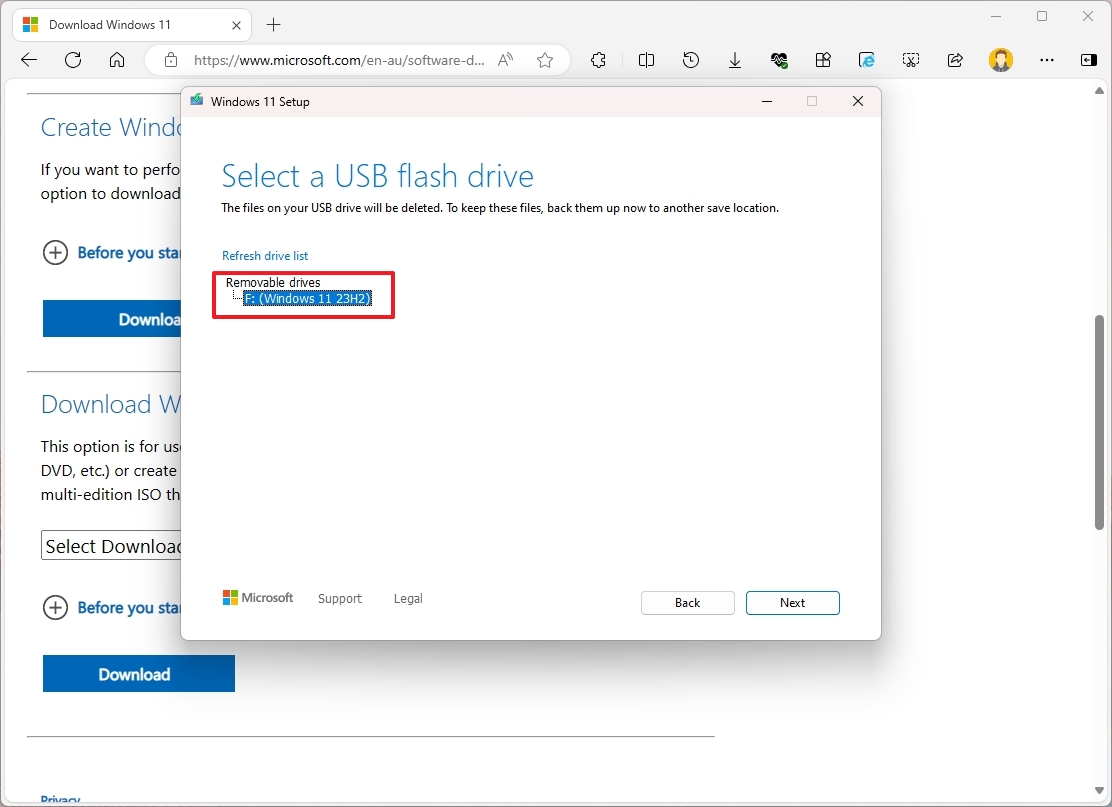
Selecting the appropriate USB drive for downloading Windows 11 is vital. The USB drive must have at least 8GB of free space to accommodate the Windows 11 installation files. It's also recommended to use a USB 3.0 drive for faster data transfer speeds. Using a slower USB drive can significantly prolong the download and installation process.
Tools for Downloading Windows 11 to USB Several
tools are available to help you download Windows 11 to a USB drive. Here are some of the most popular options: - Rufus: A free, open-source tool that creates bootable USB drives from ISO files. - Microsoft Media Creation Tool: An official tool from Microsoft that allows you to download Windows 11 and create a bootable USB drive. - Etcher: A user-friendly tool for creating bootable USB drives from ISO files, available for Windows, macOS, and Linux. - UNetbootin: A free tool that allows you to create bootable USB drives from Linux distributions and other operating systems. - Ventoy: A tool that enables you to create a bootable USB drive with multiple operating systems, including Windows 11.
Creating a Bootable USB Drive
Creating a bootable USB drive involves downloading the Windows 11 ISO file and using a tool like Rufus or the Microsoft Media Creation Tool to transfer the files to your USB drive. It's crucial to follow the instructions carefully to ensure the USB drive is properly formatted and the Windows 11 files are correctly installed.
Avoiding Common Mistakes One common mistake people make when creating a bootable
USB drive is not properly formatting the drive, which can lead to issues during the installation process. Another mistake is not verifying the integrity of the downloaded Windows 11 ISO file, which can result in a corrupted installation. Taking the time to double-check each step can save you a significant amount of time and frustration in the long run.
Practical Applications and Use Cases Downloading Windows 11 to a USB drive has several
practical applications. For instance, it allows you to install Windows 11 on multiple computers without having to download the operating system each time. It's also useful for repairing or reinstalling Windows 11 on a computer that is not connected to the internet. Additionally, having a bootable USB drive with Windows 11 can be a lifesaver in case your computer's operating system becomes corrupted and needs to be reinstalled.
Workflow Tips for a Smooth Installation
To ensure a smooth installation process, it's advisable to back up any important files on the computer before starting the installation. Additionally, disconnecting any unnecessary peripherals can help prevent potential conflicts during the installation. It's also a good idea to have the product key for Windows 11 handy, as you'll need it to activate the operating system after installation.
Conclusion Downloading Windows 11 to a
USB drive is a straightforward process that can be completed with the right tools and a bit of patience. By understanding the system requirements, choosing the right USB drive, and using a reliable tool, you can create a bootable USB drive that makes installing Windows 11 on any computer a breeze.